Parts Implemented by Caghan Caglar
Pool Page
This page automaticaly lists the entire pools in database with their related information which are name of the pool, in which country it is located, its capacity and its built date. Radio buttons are placed for each entry in the list for deleting and updating the selected entry. For searching a specific pool from database there is a textbox at the top-right side of the page. New pool data can be add from the ‘Add New Pool’ link at the bottom of the page.
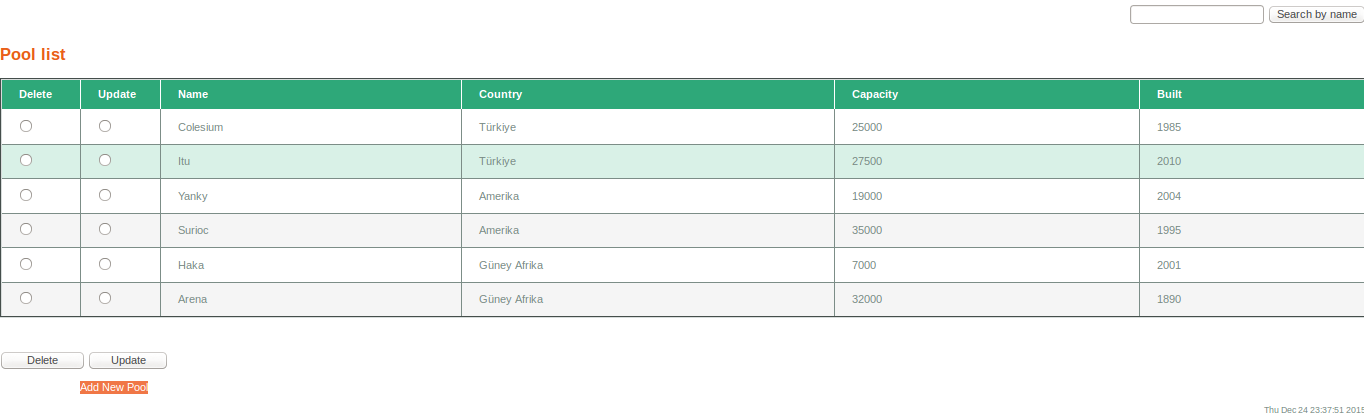
Pool Page
Search Operation
Keyword for the name of the pool which could be partial or full name should be placed to the top-right textbox and ‘search by name’ button should be clicked. After this operation all pools whose name include the keyword that user wrote to textbox will be displayed.

Result after the search with keyword ‘Itu’
Add Operation
After selecting ‘Add New Pool’ from the Pool page user will be directed to new page which includes textboxes for the name,capacity and built date information about the new pool data and a selection part for the country where new pool is located. After input entering process is done and ‘Add’ button is clicked user will be redirected to the Pool page which will list the pools with the new entry.
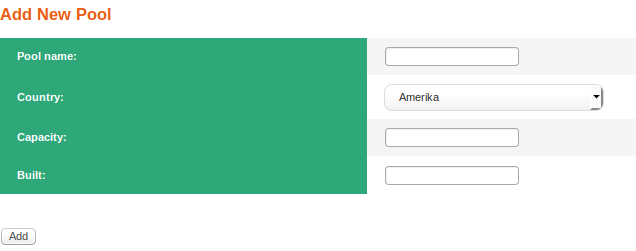
Pool Adding Page
Delete Operation
User can select the pool entry that wanted to be deleted from its radio button, after the ‘Delete’ button is clicked selected entry will be deleted form the database and user will be directed to the Pool page with updated pool list.
Update Operation
User can select the pool entry that wanted to be updated from its radio button, after the ‘Update’ button is clicked user will be directed to the pool updating page. This page has similar structure with Pool Adding page however all entries are filled with the information of the selected pool for easy use. After input entering process is done and ‘Updated’ button is clicked user will be redirected to the Pool page with updated pool list.
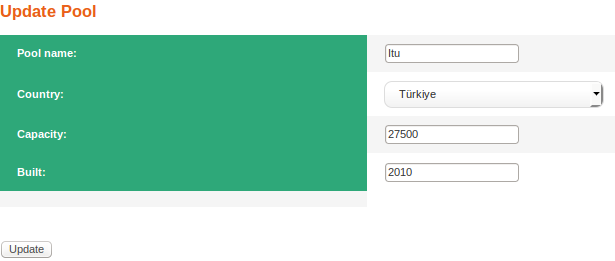
Pool Updating Page
Statistic Page
This page initialy takes league and statistic type (e.g. goal,assist or save) information from the user via selection. According to these selections player statistics will be listed in the decrasing order according to the statistic type after ‘Show’ button is clicked. Also search option is available for displaying the statistics of the desired player via textbox at the right-top corner of the page. User also could adding,deleting and updating operations on the results of their statistic querries.

Statistic Page
Search Operation
Keyword for the name of the player which could be partial or full name should be placed to the top-right textbox and ‘search by name’ button should be clicked. After this operation all players whose name include the keyword that user wrote to textbox will be displayed with their statistics.

Result after the search with keyword ‘Emre’
Add Operation
After selecting ‘Add New Stat’ from the Statistics Page user will be directed to new page which includes textboxes for the goal, assist and save numbers and a selection part for the name and team of the player and in which league his team belongs. After input entering process is done and ‘Add’ button is clicked user will be redirected to the Statistics Page.
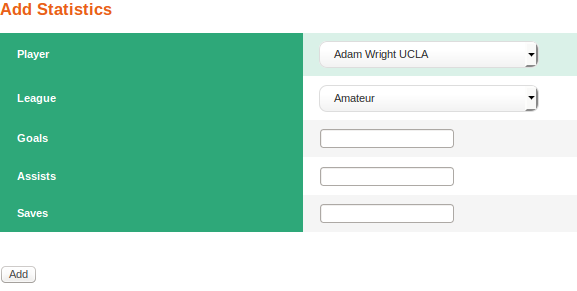
Statistic Adding Page
Delete Operation
User can select the player statistic entry that wanted to be deleted from its radio button, after the ‘Delete’ button is clicked selected entry will be deleted form the database and user will be directed to the Statistics page.
Update Operation
User can select the player statistic entry that wanted to be updated from its radio button, after the ‘Update’ button is clicked user will be directed to the statistic updating page. This page has similar structure with Statistic Adding page however entries such as name, surname and team data of the player are displayed in view-only. After input entering process is done and ‘Updated’ button is clicked user will be redirected to the Statistic page.
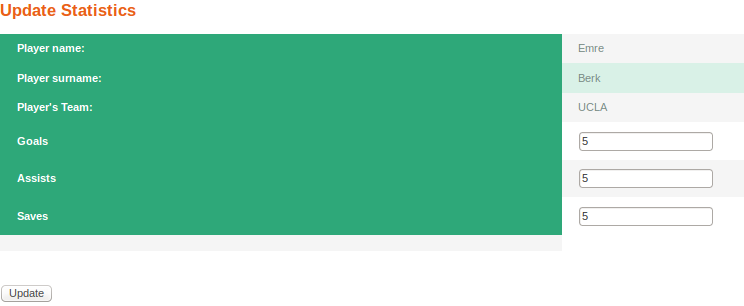
Statistic Updating Page